

Verification Notes Overview
Table of Contents
Verification Notes provide a structured, chronological view of manual verification activities associated with a specific SD Elements countermeasure. This feature functions as an interactive timeline, enabling teams to record verification outcomes, attach evidence, and surface the most important items through pinning. Each verification entry appears as its own timestamped block, helping users easily track changes and updates over time. A verification note can either be added through automations via the verification scanning tools we connect to a project, or can be added manually.
How Verification Works
All interactions with Verification Notes take place within the countermeasure page, inside the dedicated Verification Notes tab. This tab centralizes all actions related to reviewing, adding, or managing verification entries.
Adding a Manual Verification
-
Navigate to the Verification Notes tab on the countermeasure page.
-
Select Add a Manual Verification at the top of the interface.
-
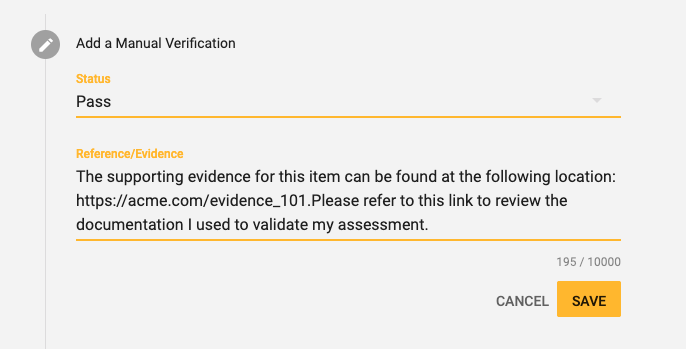
Complete the input form:
-
Status (required): Choose from Pass, Fail, Partial Pass, or No Verification Status.
-
Reference/Evidence (optional): Add notes, observations, pasted content, or any relevant supplemental information. Maximum character limit: 10,000.
-
-
Click Save to record the verification.
Once saved, the new verification entry appears at the top of the timeline in reverse chronological order.
Timeline View
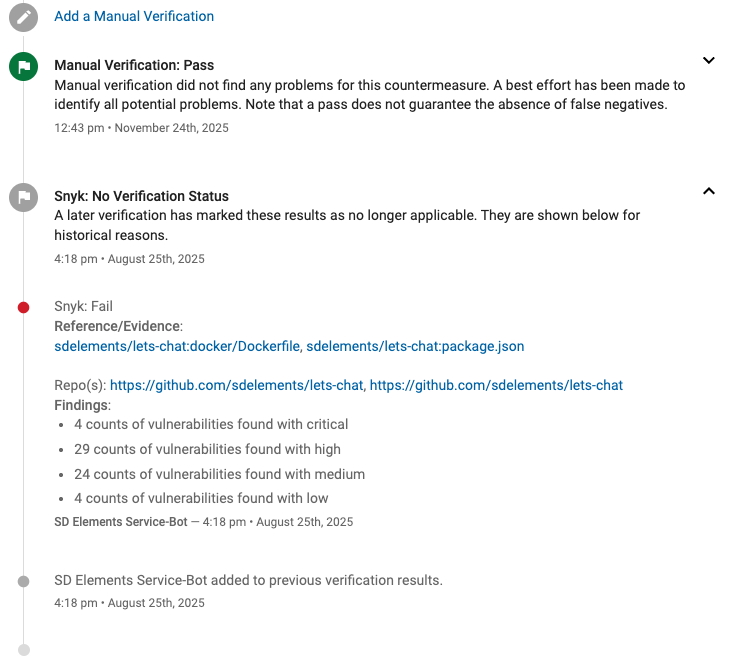
Each time you save a verification note, a new, timestamped group of sections appears at the top of the timeline:
-
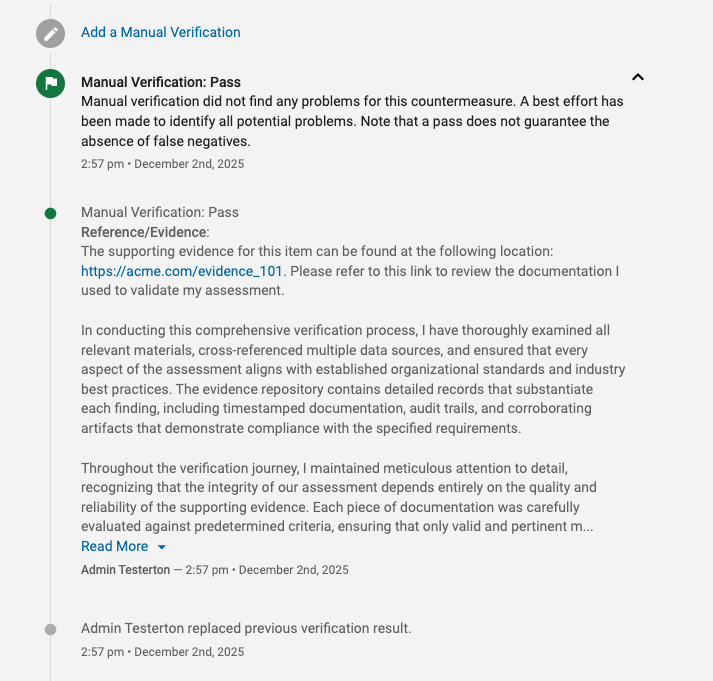
Status section: This is the main entry. It has a title like "Manual Verification: Pass" and a color-coded flag icon that shows the status at a glance (e.g., green for Pass, red for Fail). It also includes a brief, standard description for that status.
-
Reference/Evidence section: This step shows any notes you added in the "Reference/Evidence" field.
-
Results section: This is a final summary step that notes who made the update and when. The first time you save, it says the result was "added." Every time after that, it says the previous result was "replaced."
Key Features
-
Pinning Important Notes: If the Reference/Evidence section contains crucial information that you would like to surface at the top of the countermeasure, you can pin it.
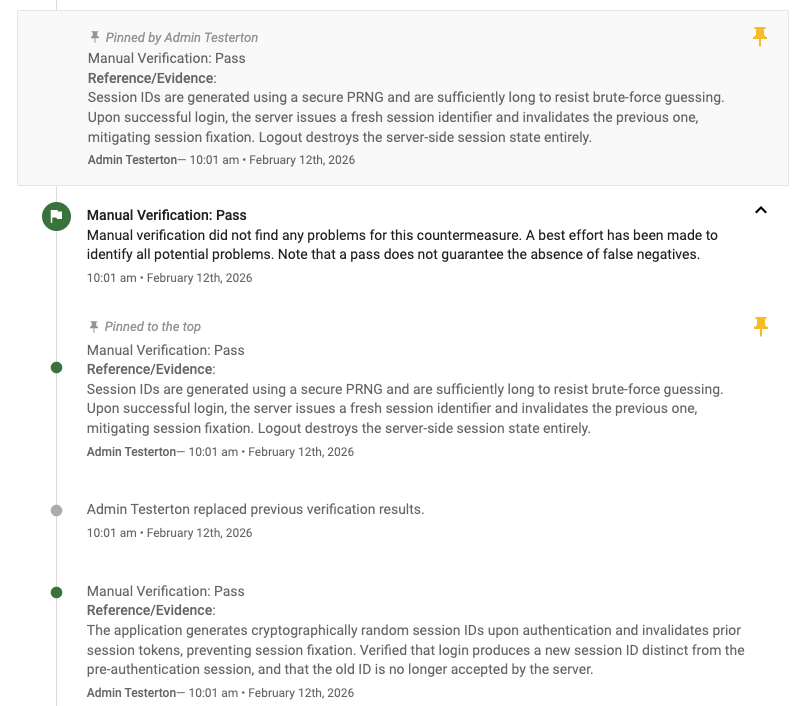
| Reference/Evidence section without any information cannot be pinned. |
-
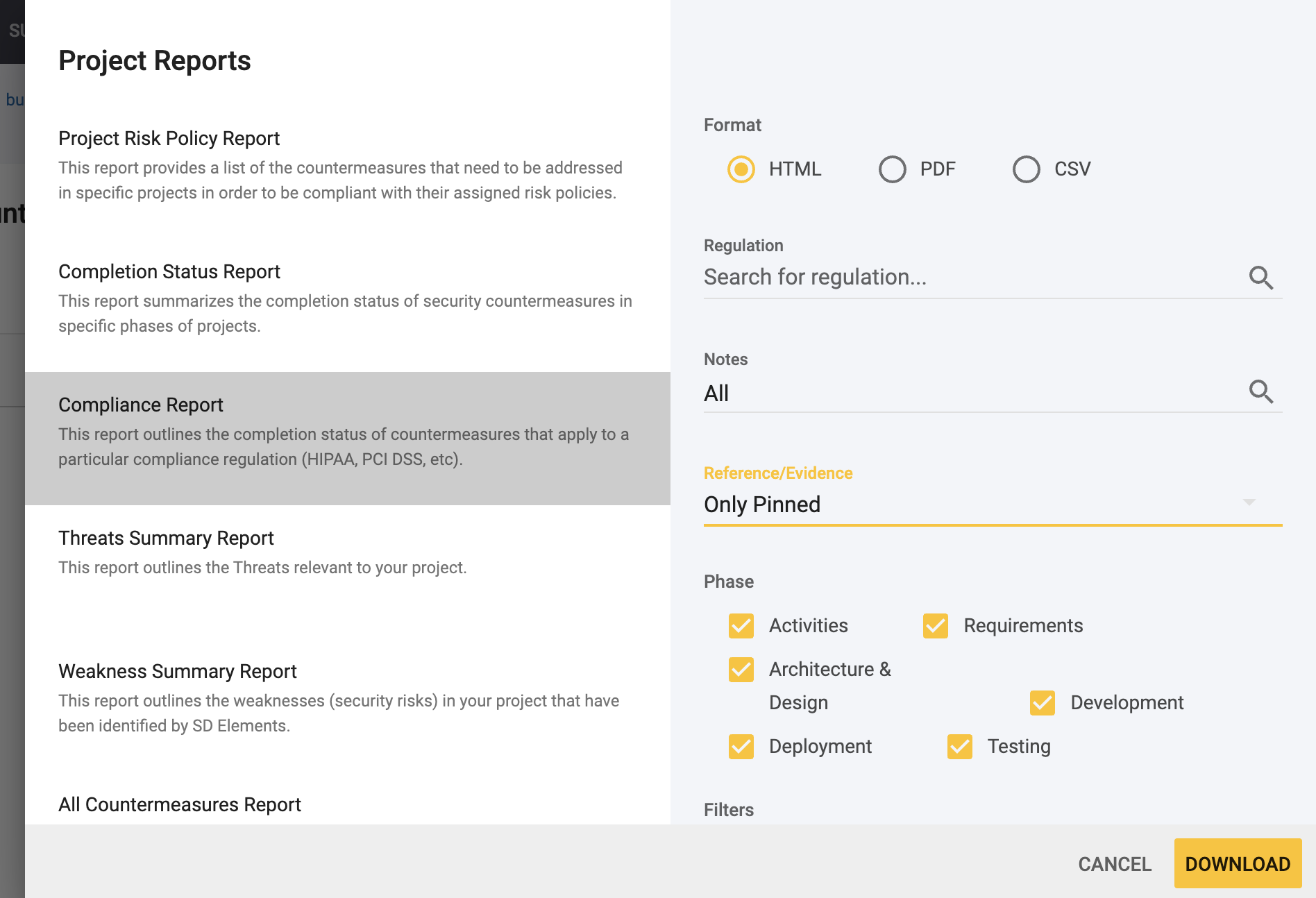
Filtering Reference/Evidence Notes on Compliance Reports: Users will be able to select what Reference/Evidence notes they are looking to surface in a report: All, None, Recent (the last one), or Pinned Only.
-
"Read More / Read Less": If you add very long notes to the "Reference/Evidence" field, the text will be automatically shortened. A "Read More" button will appear, allowing you to expand the text to see the full content and then collapse it again with "Read Less."
-
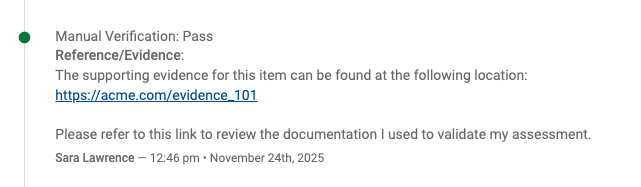
Automatic URL Linking: If you paste a web link (like www.google.com or https://securitycompass.com) into the "Evidence" field, it automatically becomes a clickable link that opens in a new browser tab.
Common Use Cases for Verification Notes
-
Tracking ongoing countermeasure verification during audits.
-
Maintaining a historical record of validation outcomes.
-
Surfacing critical evidence for rapid review via pinning.
-
Supporting internal QA processes with clearly organized verification notes.
To learn more about automatic verification notes & supporting multiple verification mappings, visit Verification Behavior page.