
Verification Behavior Overview
Table of Contents
Verification Behavior defines how SD Elements processes verification results originating from automated security tools or from multiple tools mapped to a single countermeasure. While Verification Notes provide a manual, timeline-based method for documenting verification activity, Verification Behavior focuses on the automated ingestion, interpretation, and consolidation of results from integrated security scanning tools.
This page explains how results are mapped, combined, and displayed when one or more tools contribute verification data to the same countermeasure.
Working with verification tool results
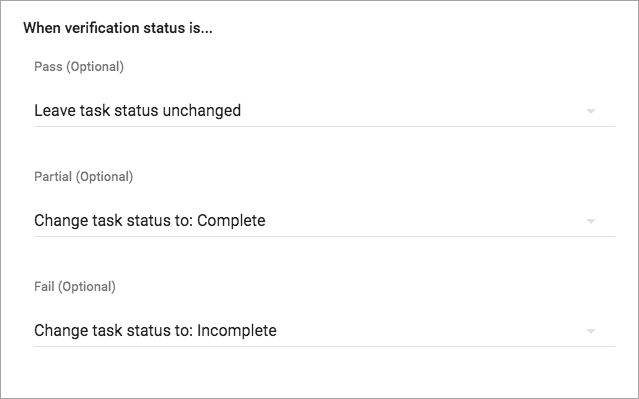
SD Elements supports setting a Countermeasure to a different status based on the verification tool results. When you integrate with a security verification tool, you have three options on how to process the results for each of the three verification statuses (Pass, Partial Pass, and Fail):
-
Leave status unchanged
-
Change Countermeasure status to: Complete
-
Change Countermeasure status to: Incomplete
| If you have customized your SD Elements status you will have more choices corresponding to those new statuses. |
Each of the verification statuses can have its own setting. The three options are described below:
Leave status unchanged: In this case, no matter what the scanner reports the status of the SD Elements Countermeasure will remain the same.
Change Countermeasure status to: Complete: In this case, if set for a verification status and the calculated result from the scanner(s) report the same verification status for an SD Elements Countermeasure, then the status of the SD Elements Countermeasure will be set to complete no matter what its previous state was.
Change Countermeasure status to: Incomplete: In this case, if set for a verification status and the calculated result from the scanner(s) report the same verification status for an SD Elements Countermeasure, then the status of the SD Elements Countermeasure will be set to incomplete no matter what its previous state was.
Supporting multiple verification tools
SD Elements supports the use of multiple verification tools, as well as manual verification. When you integrate with a security scanning tool, you have three options on how to process the results:
-
Merge
-
Replace Same Tool
-
Replace All
The final result after replacing or merging will yield an overall verification result. This new result appears on the flag inside the Countermeasure view. The three options are described below.
Merge
In a merge, if at least one scanner marks the Countermeasure as a Fail, then the result is a Fail. Use this option when a) you use multiple scanners, or b) results are from a single verification tool on different parts of the code.
Example:
-
If you import a Fortify scan with a Fail, and then import a Veracode scan with a Pass, then the final result will be a Fail.
-
Similarly, if one scanner marks the Countermeasure as a Partial Pass, and another scanner marks the Countermeasure as a Pass, then the result will be a Pass.
Replace Same Tool
The result from this import for a specific Countermeasure will override any previous results generated by the same verification tool. Use this option when you run the same scanner on the same code base more than once, and you only want to maintain the latest results.
Example:
-
If the Countermeasure was previously marked by Fortify as a Fail, and you are importing another Fortify scan with a Pass, then the result will be Pass.
-
If you previously imported a Fortify scan, and you are now importing a Veracode scan, then the final result will be the same as a Merge.
Replace All
The result from this import for a specific Countermeasure will override any previous results. Use this option when you want to ignore all previous scanning results.
Example:
-
If the Countermeasure was previously marked as a Fail, but a new import marks it as a Pass, then the final result will be a Pass.