
Application properties
Table of Contents
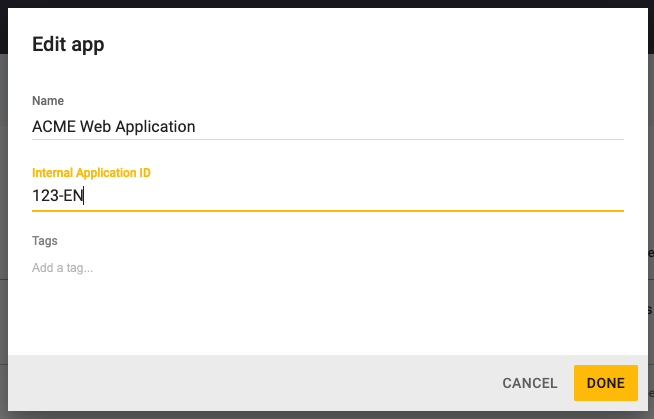
You can configure SD Elements to include custom Application properties that apply to all applications. Customized properties are displayed on an application’s edit page:
They can be edited like other application properties.
Property details
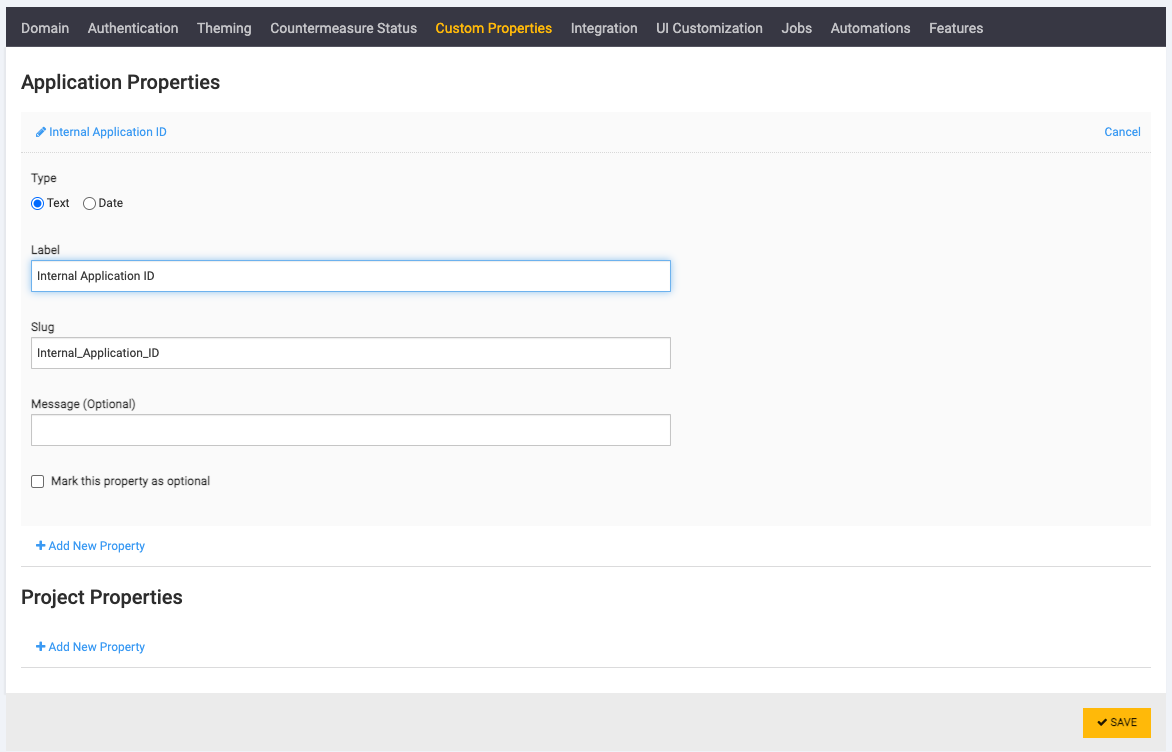
A custom application property has the following details:
-
Type: The text or Date.
-
Label: A human-readable label that is displayed in the Application Edit form.
-
Slug: A unique system-generated identifier.
-
Message: An optional help/explanation message that is displayed in the Application Edit form.
-
Mark this property as optional: This indicates whether or not this property is optional.
Add an application property
Create a new application property by following the steps below:
Prerequisites:
-
The user has the system Super User permission.
Steps:
-
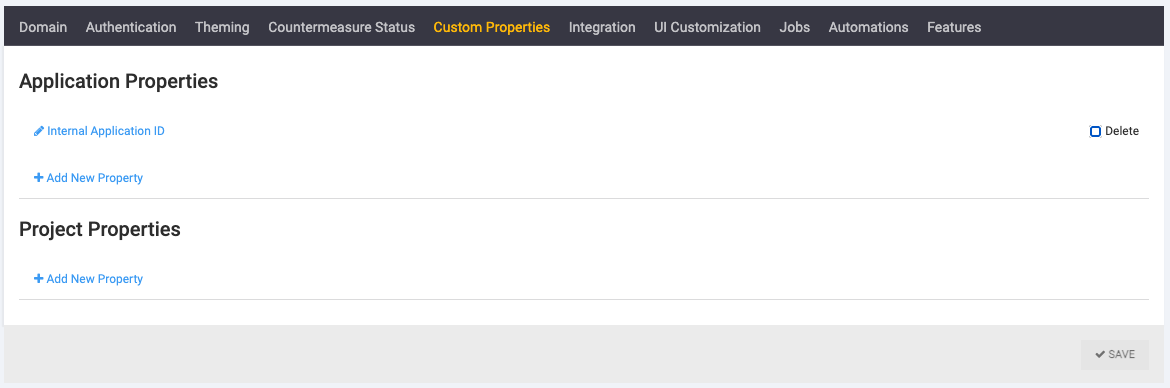
Click System→Custom Properties.
-
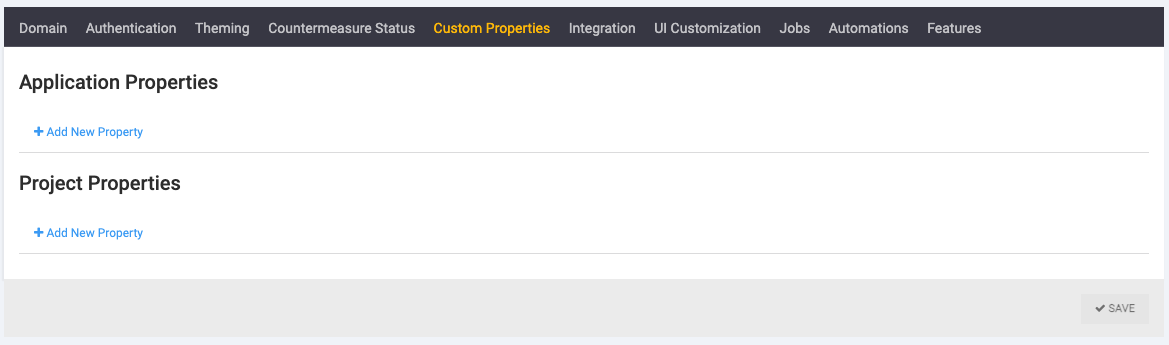
Click Add New Property.
-
Enter in the details for the property.
-
Click Save.
The new property is now available in all applications.
Delete an application property
You can remove custom properties from the system. Follow the steps below to remove one or more properties from all applications:
Prerequisites:
-
The user has the system Super User permission.
Steps:
-
Click System→Custom Properties.
-
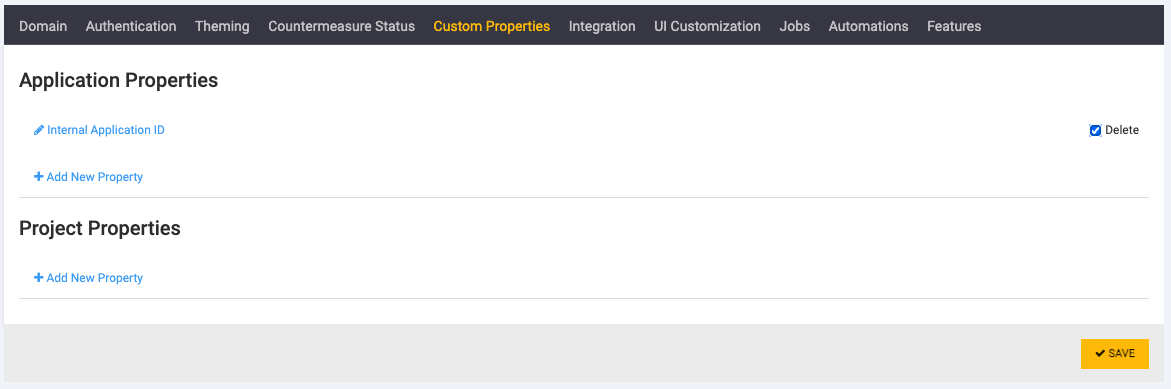
Select the Delete checkbox beside each property you want to remove.
-
Click Save.
This removes the property and its values from all applications in the system.
| Removing a property and its values is permanent. |
Reorder application properties
Application properties are displayed in the system according to their position in the System→Custom Properties list. Update their order by following the steps below:
Prerequisites:
-
The user has the system Super User permission.
Steps:
-
Click System→Custom Properties.
-
Click and drag the properties in the list to match the required order.
-
Click Save.
This updates the property list order for all applications.